
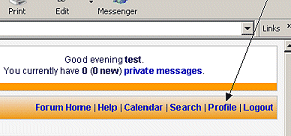
The forum has a lot of options that you can customise for yourself. To get to these, click on the 'Profile' link on the right of the orange band near the top of your screen.
You should now see a grey and blue panel down the left side, and a mainly white panel with an orange heading strip on the right.
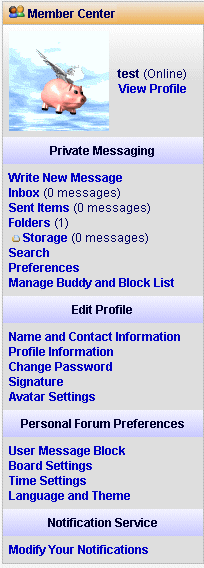
The first section of the left panel is headed 'Private Messaging'. We're going to ignore this section for now and move straight down to the next section, headed 'Edit Profile'.
First, click on 'Name and Contact Information', which will take you to a page showing your screen name and your email address. You can change either of these if you wish to. Below this you can add your 'Instant Messaging' details if you wish these to be available to other members. If you don't know what these are, then don't worry - they're not part of the forum, just another way of contacting people. When you have finished, click the 'Save' button.
Next, look under 'Edit Profile' on the side panel and click on 'Profile Information'. This page lets you fill in more of your details. Only add information that you are happy for your fellow members to view. If you want to put your birthday in, remember that it goes Month, Day, Year (the American way round). The personal message at the bottom will be displayed beside each message you post. When you have finished, click the 'Save' button.
The next option in the side panel is 'Change Password', which I think is self-explanatory.
Below this is 'Signature'. This lets you type in a message which is displayed below each of your posts.
Last in this section of the side panel is 'Avatar Settings'. Your avatar is an image that is displayed to the left of your posts. There are two small boxes on this page, 'Available Galleries' and 'Images in Gallery'. Each of the options in the 'Available Galleries' box is a folder containing images. When you click on them you will see a list of the images in that gallery under 'Images in Gallery'. Clicking on an image name will show you the image. If you find an image you would like to use, click on 'Save' at the bottom of the page.
You can also link to an image on another website or upload an image onto the MRC server using the 'Your Own Avatar' panel at the bottom of the page.The next section is Personal Forum Preferences. Click on the first option, 'User Message Block'. This is a page where you can block messages from another forum member by typing in their screen name.
Next on the side panel comes 'Board Preferences'. This gives you a list of tick-boxes to help you to manage the forum. You might want to come back to this when you have been using the forum for a while.
'Time Settings' comes next. This should automatically be set to GMT when you join the forum. If we're in daylight savings time you need to make sure that there is a tick in the 'Daylight Savings Time?' box.
Finally in this section comes 'Languages and Theme'. We only have English installed at present. The theme gives you a choice of alternative colours just in case you don't like the MRC blue and orange. As if you would!
The next and final section is 'Notification Service'. From the 'Modify Your Notifications' page you can decide from which of the forum boards you would like to be notified of new topics.